BigQuery
Summary
This document covers the information to gather from Google BigQuery in order to configure a Qarbine data service. The data service will use the Qarbine Google_Big_Query driver. You can define multiple data services that access the different endpoints by using different credentials. Once a data service is defined, you can manage which Qarbine principals have access to it and its associated data. A Qarbine administrator has visibility to all data services.
BigQuery Configuration
Overview
The following information is needed by Qarbine to interact with Google Spanner:
- BigQuery API enabled,
- project identifier,
- location, and
- permissions key file.
Enable BigQuery API
Navigate to the following page to enable the BigQuery API
https://console.cloud.google.com/apis/enableflow;apiid=bigquery
Determine the Project ID
Go to the Google Cloud Console (https://console.cloud.google.com/)
Review the information below.
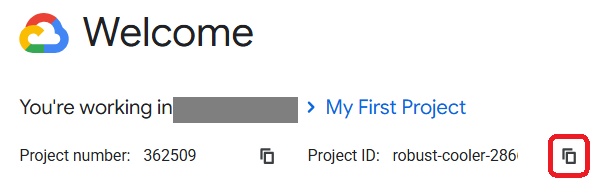
Copy the project identifier and paste it into a temporary location.
Creating Viewer Access
You will need to set up authentication using a service account key file. From the main console page click

and then click

Or, navigate directly to https://console.cloud.google.com/iam-admin/serviceaccounts
Click

Enter a name
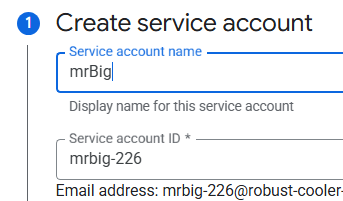
Click

Choose the roles listed below.
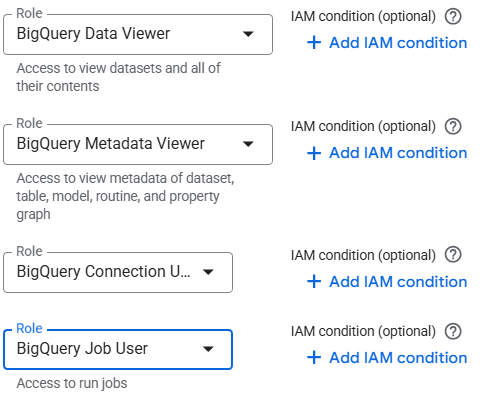
For details on BigQuery permissions see https://gcp.permissions.cloud/iam/bigquery
Click

Click

In the listing click the highlighted menu option

Click

and choose

Choose
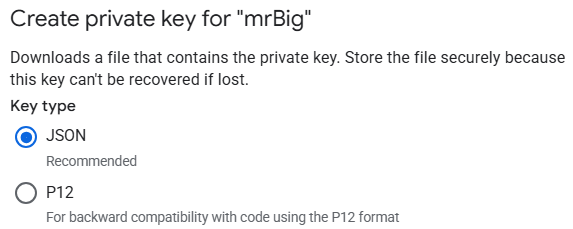
Click

The JSON file is downloaded. Review and then close the information dialog
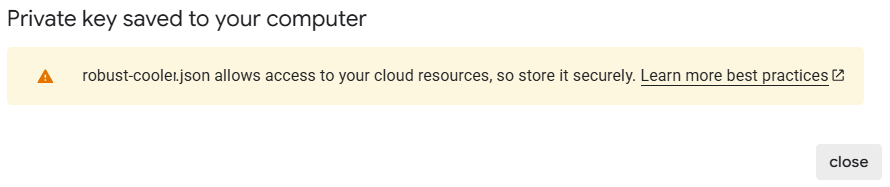
The JSON file will need to be copied to the Qarbine host to allow it to access BigQuery.
Determine Location
Go to the Google Cloud Console (https://console.cloud.google.com/)
Navigate to BigQuery.


Click on your dataset, and you’ll see the location (e.g., US, EU, asia-northeast1, me-central2, etc.) listed in the dataset information.
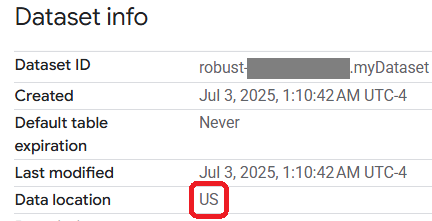
Qarbine uses the Google BigQuery Node.js client library. As a result the location in your job or query configurationmust be set if your dataset is not in the default US multi-region. All tables referenced in a query must be in the same location as the job. Mixing single-region and multi-region locations will cause errors.
For more information on locations see https://cloud.google.com/bigquery/docs/locations
Qarbine Configuration
Compute Node Preparation
Determine which compute node service endpoint you want to run this data access from. That URL will go into the Data Service’s Compute URL field. Its form is “https://domain:port/dispatch”. A sample is shown below.

The port number corresponds to a named service endpoint configured on the given target host. For example, the primary compute node usually is set to have a ‘main’ service. That service’s configuration is defined in the ˜./qarbine.service/config/service.main.json file. Inside that file the following driver entry is required
 . . .
"./driver/googleBigQueryDriver.js"
]
The relevant configuration file name for non primary (main) Qarbine compute nodes is service.NAME.json. Remember to have well formed JSON syntax or a startup error is likely to occur. If you end up adding that entry then restart the service via the general command line syntax
pm2 restart <service>
For example,
pm2 restart main
or simply
pm2 restart all
Data Service Definition
Open the Administration Tool.
Navigate to the Data Services tab.

A data service defines on what compute node a query will run by default along with the means to reach to target data. The latter includes which native driver to use along with settings corresponding to that driver. Multiple Data Sources can reference a single Data Service. The details of any one Data Service are thus maintained in one spot and not spread out all over the place in each Data Source. The latter is a maintenance and support nightmare.
To begin adding a data service click

On the right hand side enter a data service name and description. The name can be functional or technical in nature.

Set the Compute URL field based on the identified compute node above. Its form is “https://domain:port/dispatch”. A sample is shown below.
Also choose the driver.

SSH into the Qarbine host and place the key file in the folder ˜/qarbine.service/config. It will be referenced by the server options as the “keyFilename” as shown below.
.
Specify the server options using a CSV list of key\value pairs.

You can reference environment variables using the syntax %NAME%. Any strings should be quoted and the key\value pairs separated by commas.
Specify the database in the entry field. For example,

Next, test the settings by clicking on the icon noted below.

The result should be
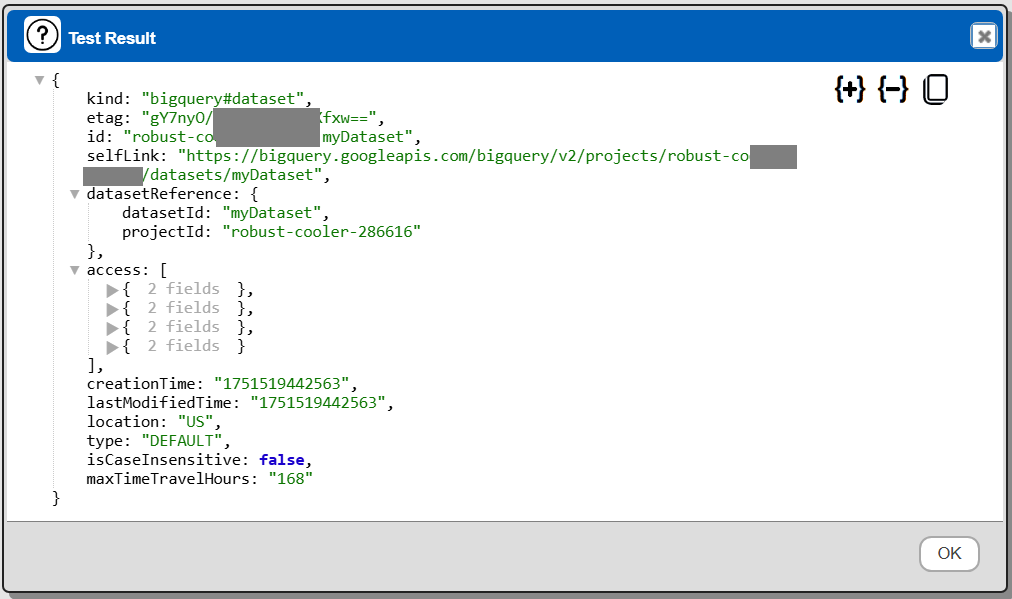
Save the Data Service by clicking on the image highlighted below.

The data service will be known at the next log on time. Next, see the Google BigQuery oriented query interaction and any tutorial for information on interacting with it from Qarbine.